






















How to Change localhost to a Custom Domain Name in XAMPP/WAMP (Windows)?


Domain names are always easy to remember and also give a professional look in local development instead of typing IP (127.0.0.1) or localhost and file directory.
By default while using local development server WAMP and XAMPP, you have to type localhost/{directory_of_web_application} or 127.0.0.1/{directory_of_web_application} in browser. In XAMPP/WAMP, there is no direct one-click method like in localWP to create a custom domain.
This tutorial will help you to create an easy-to-use custom domain URL in WAMP and XAMPP.
Let’s say you have your local application on localhost/mylocalapp. After following this tutorial you can access that application with mylocalapp.test or any domain name you would like.
Steps to convert localhost into a custom domain in XAMPP in Windows
To set up a custom domain in localhost we have to apply the change in three places: Setting local development in XAMPP & identifying directory, pointing a custom domain to local computer from Windows host file, and redirecting the domain to a specific application folder through VirtualHost.
Locate Application directory (folder)
Generally, application/website files are located inside htdocs in the main XAMPP folder. For localhost/mylocalapp directory C:/xampp/htdocs/mylocalapp.
Update Windows Host file
Now, Update the Windows host file to tell the local DNS to redirect your domain into your local computer (same Computer).
- Step 1: Go to C:\Windows\System32\drivers\etc and edit hosts file “as Administrator”. [ For that open, any text editor in administrator mode then navigate to hosts file.]
- Step 2: Add 127.0.0.1 and custom domain at the end of file.
127.0.0.1 mylocalapp.test mylocalapp.localYou can add as many domain names as you want by separating them with space. Or can add on each new line like: 127.0.0.1 mylocalapp.local
- Step 3: Save and close.
After getting a request on the same localhost server, let’s tell which application to execute on a particular domain request with a virtual host.
Update Apache virtual host.
Virtual host redirects a particular domain to a specific application file directory in the server.
- Step 1: Go to C:\xampp\apache\conf\extra and open httpd-vhosts.conf file.
- Step 2: Add virtual host configuration for particular URL at the end of file.
    ServerName mylocalapp.test // URl to set
    ServerAlias mylocalapp.local // Another URl to open same Web App
    DocumentRoot C:/xampp/htdocs/mylocalapp // Application file directory (folder) in XAMPP localhost
You can add multiple alias names (domain name) by separating with space or can add another ServerAlias line in the new line.
- Step 3: Save and close.
Now, your custom domain for local applications is ready.
Steps to convert localhost into a custom domain in WAMP in Windows
Now, we can easily add a custom domain in WAMP from Graphical Interface.
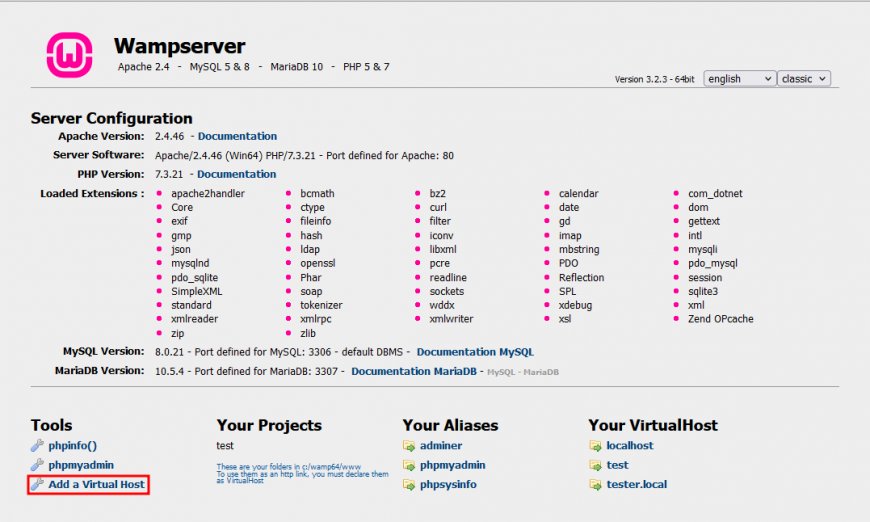
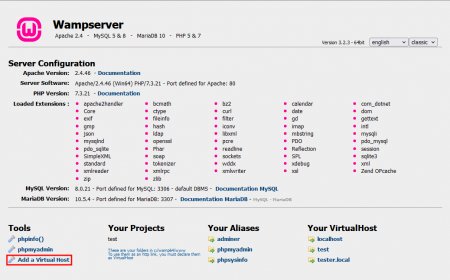
- After starting WAMP server, visit localhost in browser and click “Add a Virtual Host” on left bottom corner.
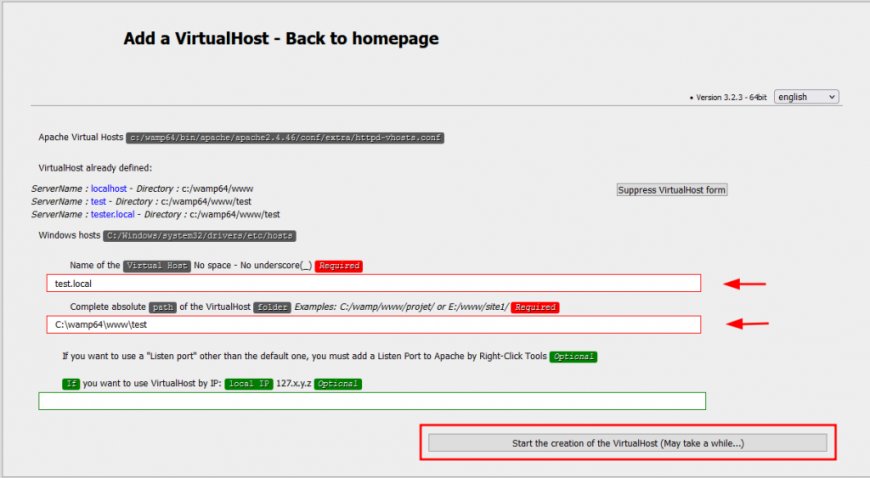
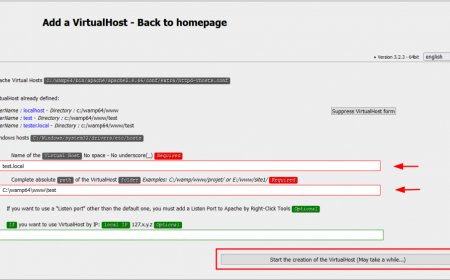
- Then, add custom domain in “Name of Virtual Host” field and your local application folder path in “VirtualHost folder” field. And, click on “Start the creation of the VirtualHost”.
- Now, restart the DNS server. Right click on WAMPserver icon on taskbar tray. Go to Tools and click on “Restart DNS”. Now your custom domain is configured an ready to use.
Source: https://nil.pro.np/xampp-windows-localhost-domain/
What's Your Reaction?
 Like
0
Like
0
 Dislike
0
Dislike
0
 Love
0
Love
0
 Funny
0
Funny
0
 Angry
0
Angry
0
 Sad
0
Sad
0
 Wow
0
Wow
0